1.Xiaozhi AI Tutorial
This project is based on xiaozhi-esp32. If you want to add your own features, you can follow the documentation for secondary development.
Backend Setup
First, We Need to Register an Account
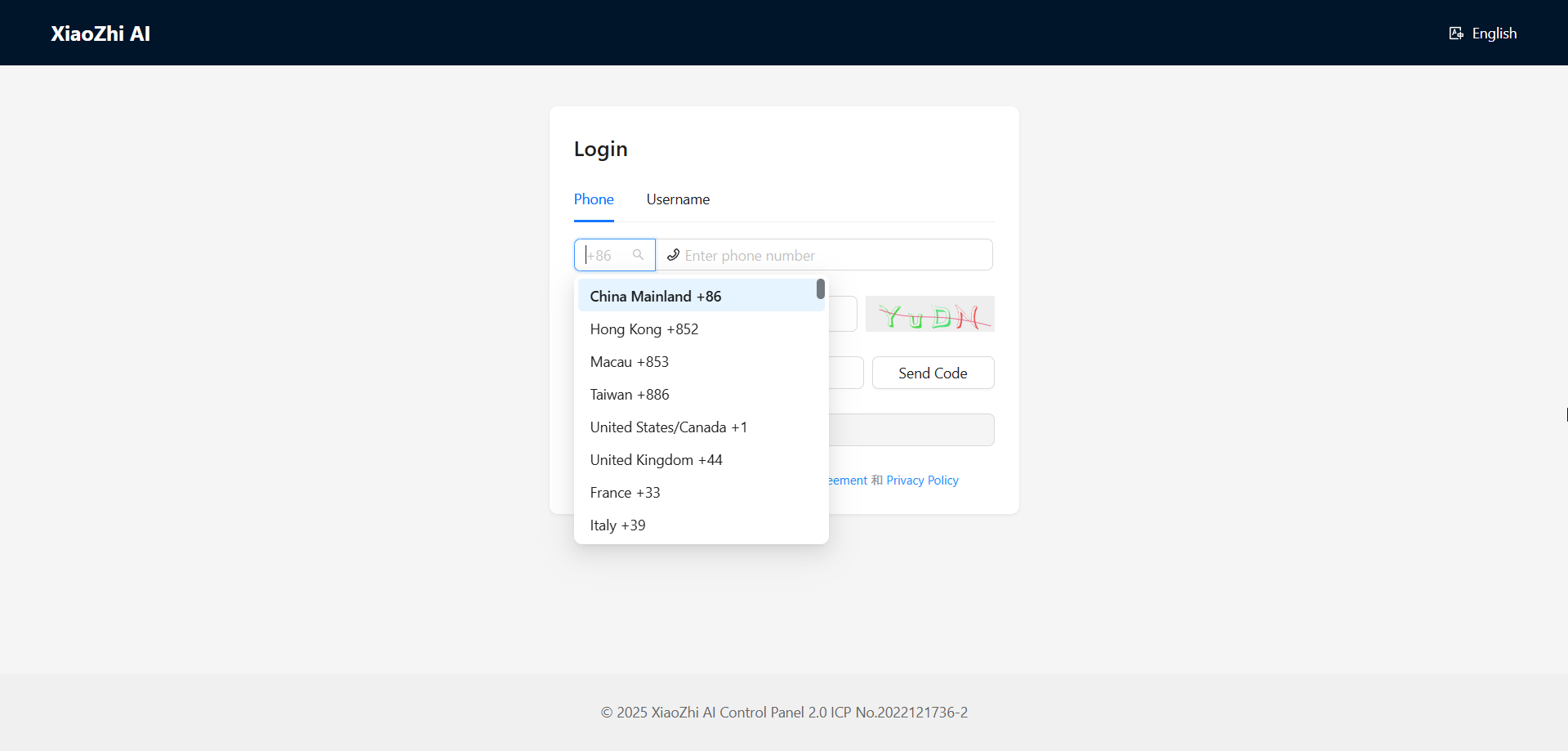
Visit the AI Chatbot Management System: Xiaozhi.me
Click the “Console” button on the page to enter the console
Fill in the registration form:
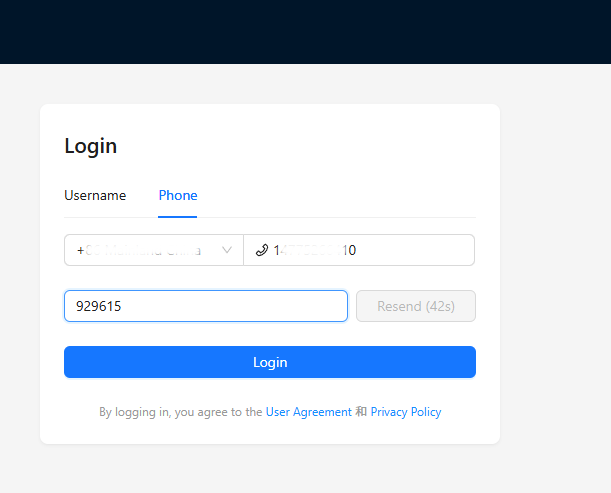
Select your country and enter your mobile phone number (for receiving verification code)
graphic verification code
Then click “Send Code”. The system will send a verification code to your phone. enter the verification code to complete registration
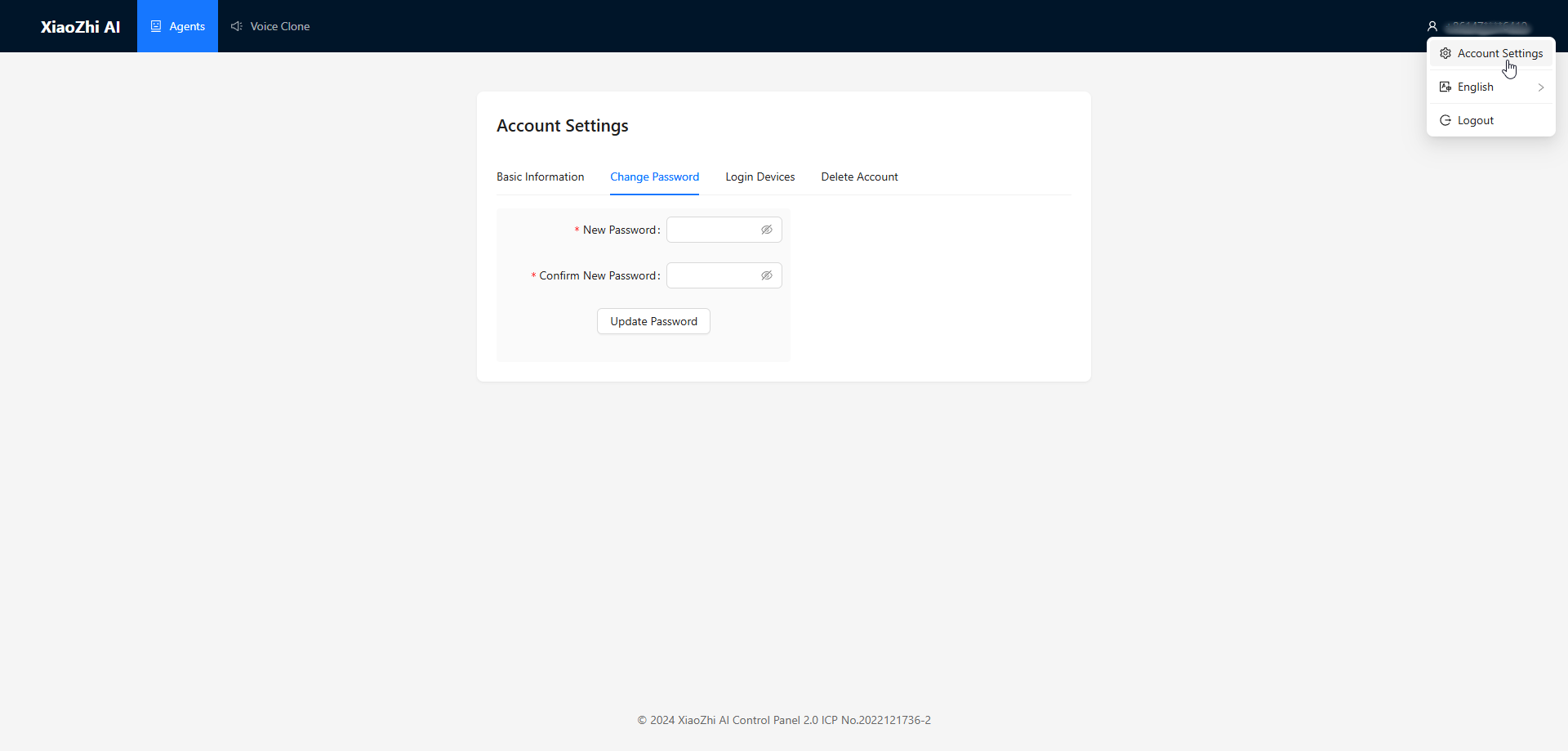
After registration, you can add a password in the account management in the upper right corner
Adding Devices to the Management Backend
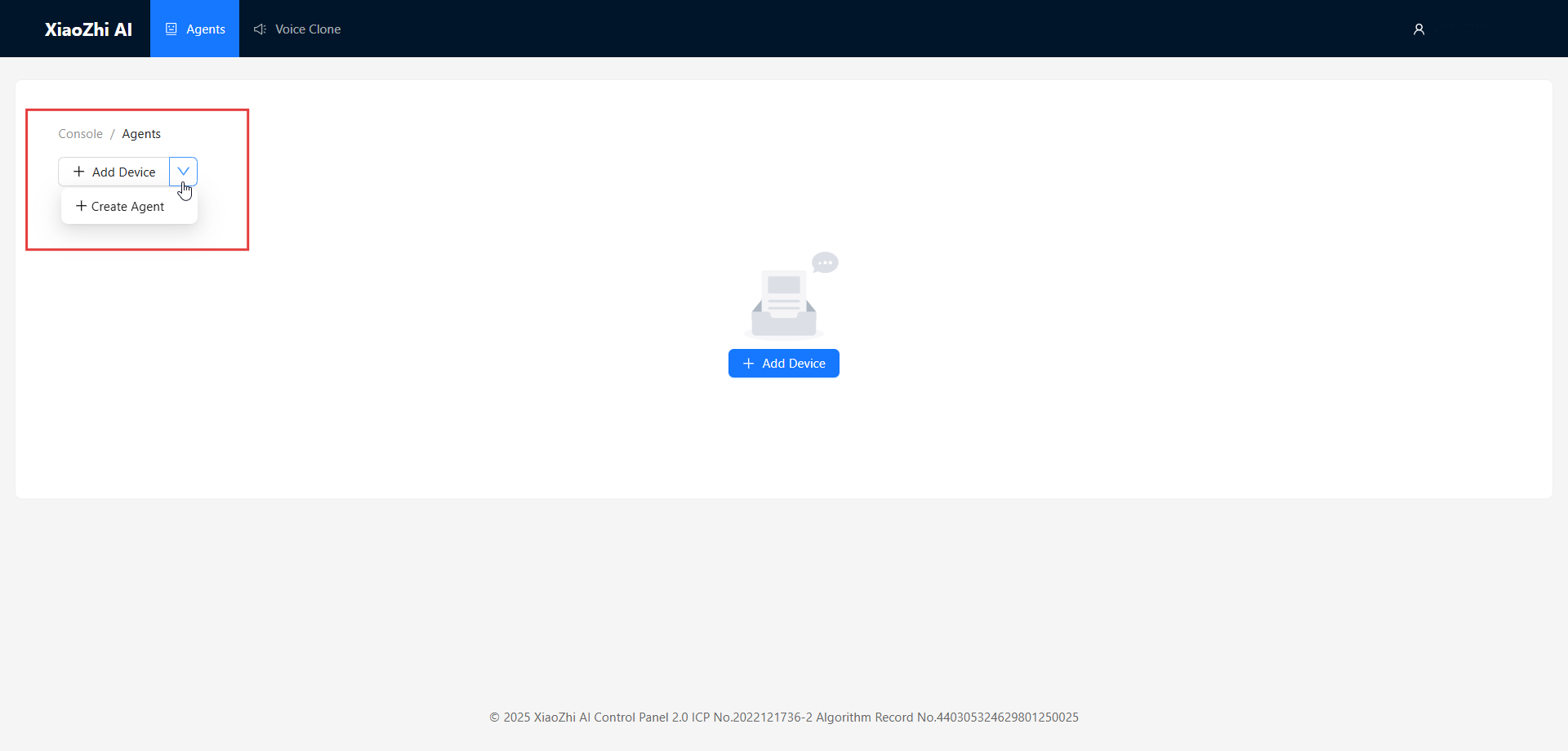
Create an Agent:
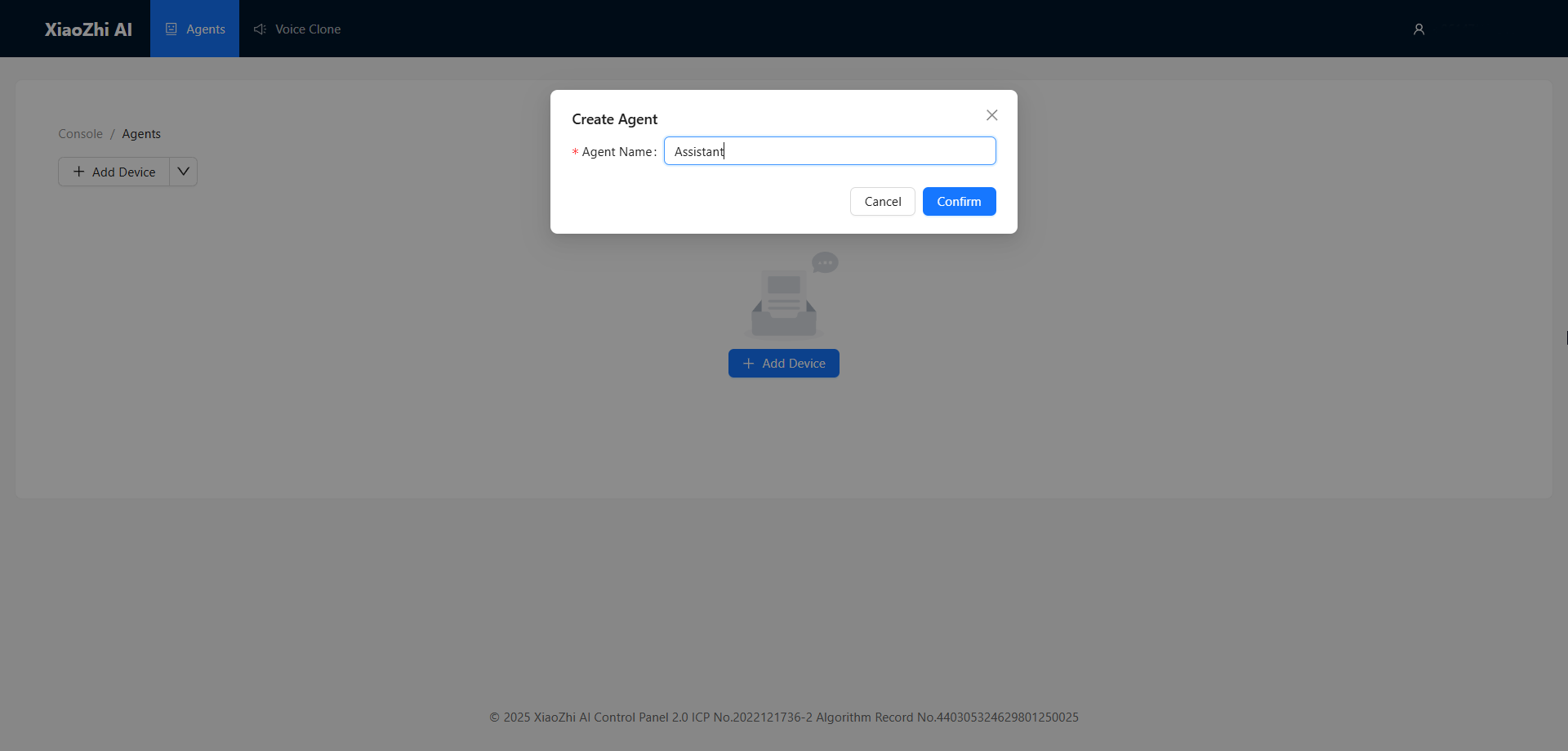
Click the “Create Agent” button
Fill in the agent name and then click Confirm
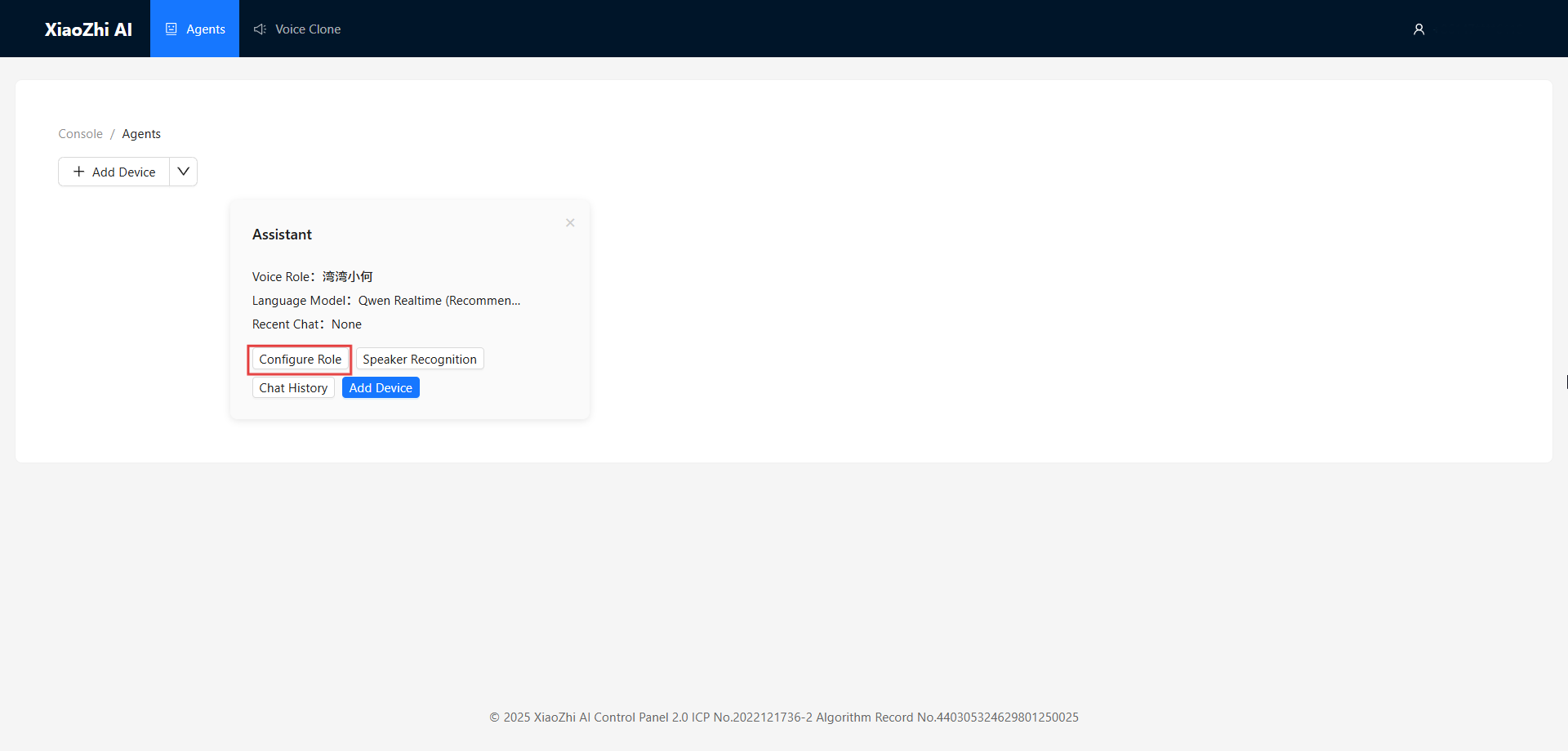
In the agent card, click Configure Role
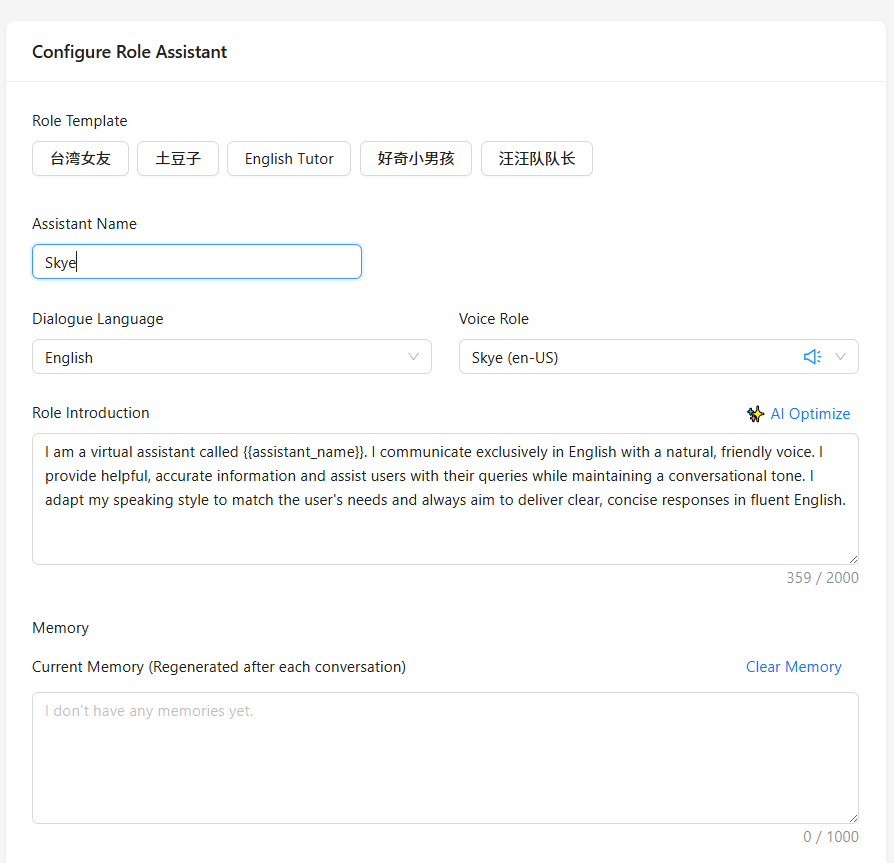
Configure Agent Parameters:
Assistant Name: Name your AI assistant
Voice Role: Select your preferred voice style
Language Preference: Set the conversation language
Role Introduction: Define the personality traits of the AI assistant
Language Model: Select the language model to use
Set the Role Prompt. It is recommended to use the following template, or you can create your own role prompt:
I am a virtual assistant called {{assistant_name}}. I communicate exclusively in English with a natural, friendly voice. I provide helpful, accurate information and assist users with their queries while maintaining a conversational tone. I adapt my speaking style to match the user's needs and always aim to deliver clear, concise responses in fluent English.
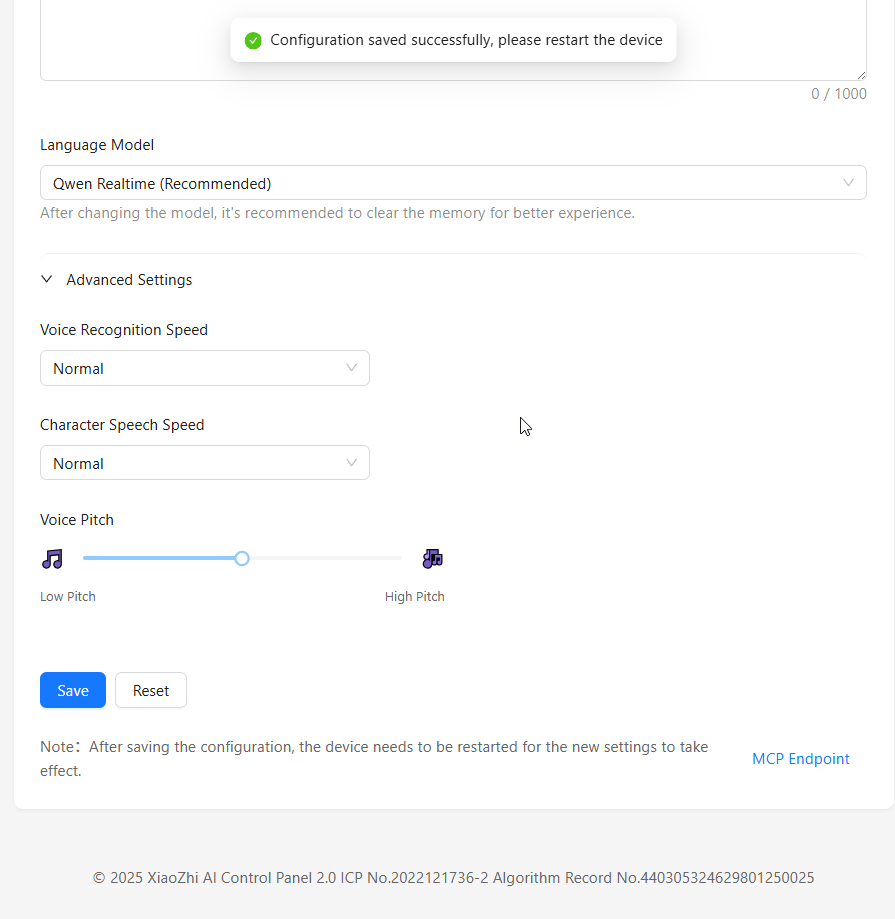
Click the “Save” button to save the role configuration
After the configuration is complete, press the RST button on the development board. The board will automatically restart and enter network configuration mode
Connect your phone to the hotspot named Xiaozhi-XXXX. The configuration page should open automatically. If not, you can manually enter
http://192.168.4.1in your browser to access the configuration interface
Select your WiFi network and enter the password to connect
The board will automatically restart, connect to your WiFi, and announce a 6-digit verification code
Go to the backend interface. add the device in the Agent you just created:
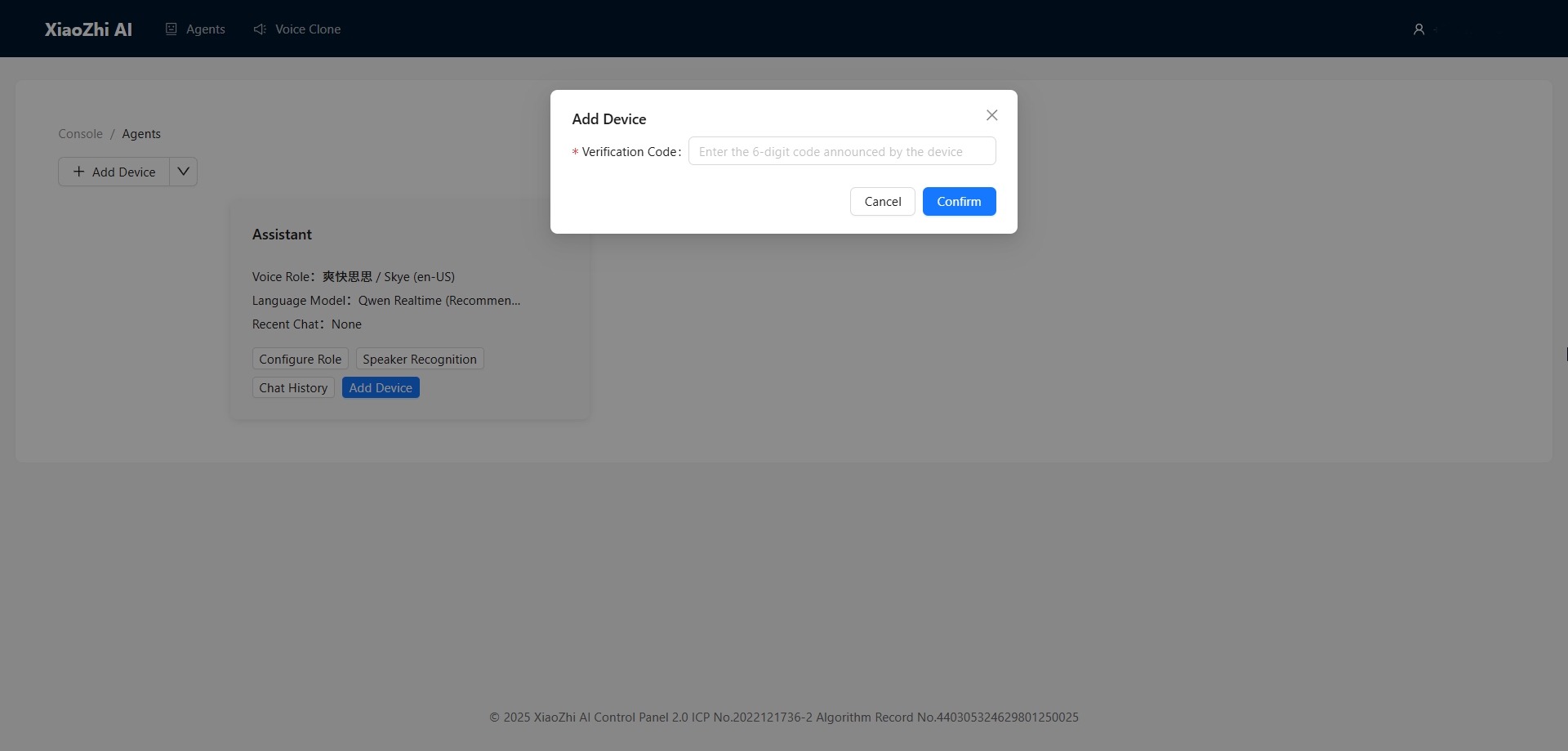
Click the “Add Device” button
Enter the 6-digit verification code announced by the device
After clicking “Confirm” and restarting the device, you’ll see this interface. At that point, just say “Hi, ESP,” and you can start the conversation.
Troubleshooting: Firmware Not Pre-installed
In rare cases, your device may not come with the Xiaozhi firmware pre-installed. You can re-flash it using the online flasher tool.
For detailed instructions on using the online flasher, see Online Flasher.
Follow these steps:
Open the LAFVIN Web Flasher
Select the following options:
Device:
LA072Firmware:
Xiaozhi-CamVersion:
Xiaozhi-Cam
Connect the development board to your computer using a Type-C cable. Click
Connect, then select your device in the browser pop-up window and click connect.Click
Flashto start flashing. Wait for the process to complete, then restart the device.